
How can we help?
Find answers, chat with our AI assistant, or reach the team. We're here to help you blow the conch and gather your crew.
Browse the FAQ
Step-by-step answers to the most common questions, with screenshots.
Read the FAQAsk the AI Assistant
Get an instant answer. Upload a screenshot of your issue and our assistant will help.
Start chattingSubmit a Ticket
Can't find an answer? Send us the details and we'll get back to you.
Open a ticketFrequently Asked Questions
Getting Started
Conch is a spontaneous social coordination app for iPhone. "Blow the conch" to signal your friends you want to hang out, and they get an instant notification. Conch also has a social feed, an event discovery map, real-time event messaging, and customizable themes.
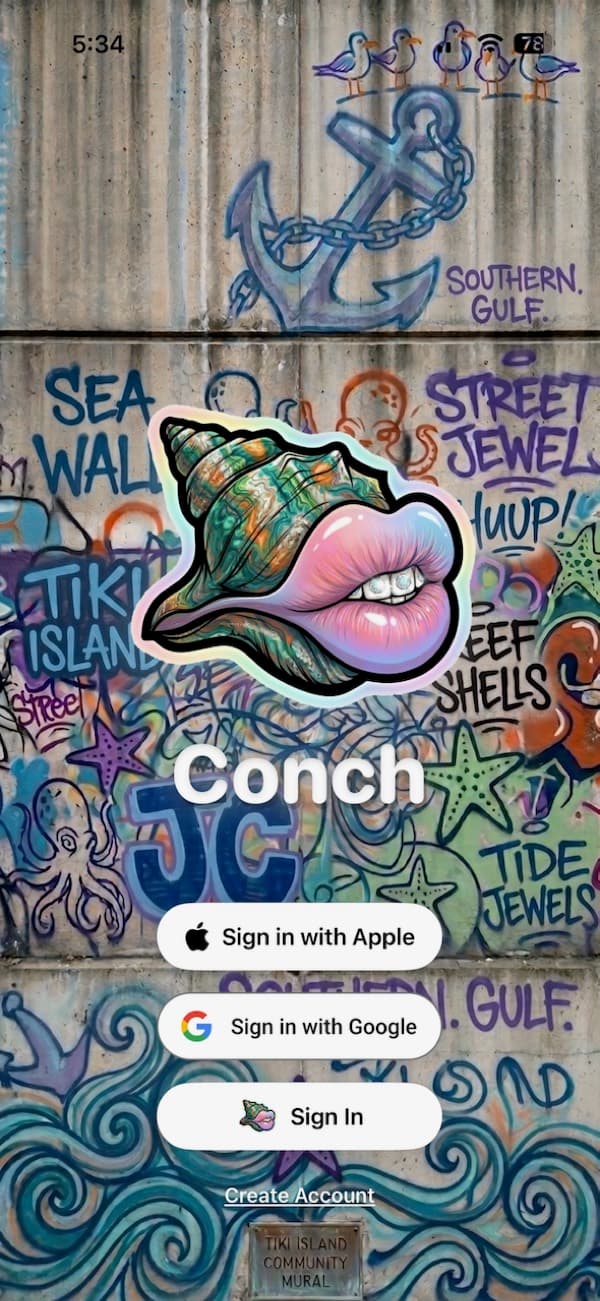
Download Conch from the App Store and open it. You can sign up with your Apple ID, Google account, or email address. After signing in, set up your profile (name, photo) and you're ready to blow the conch.
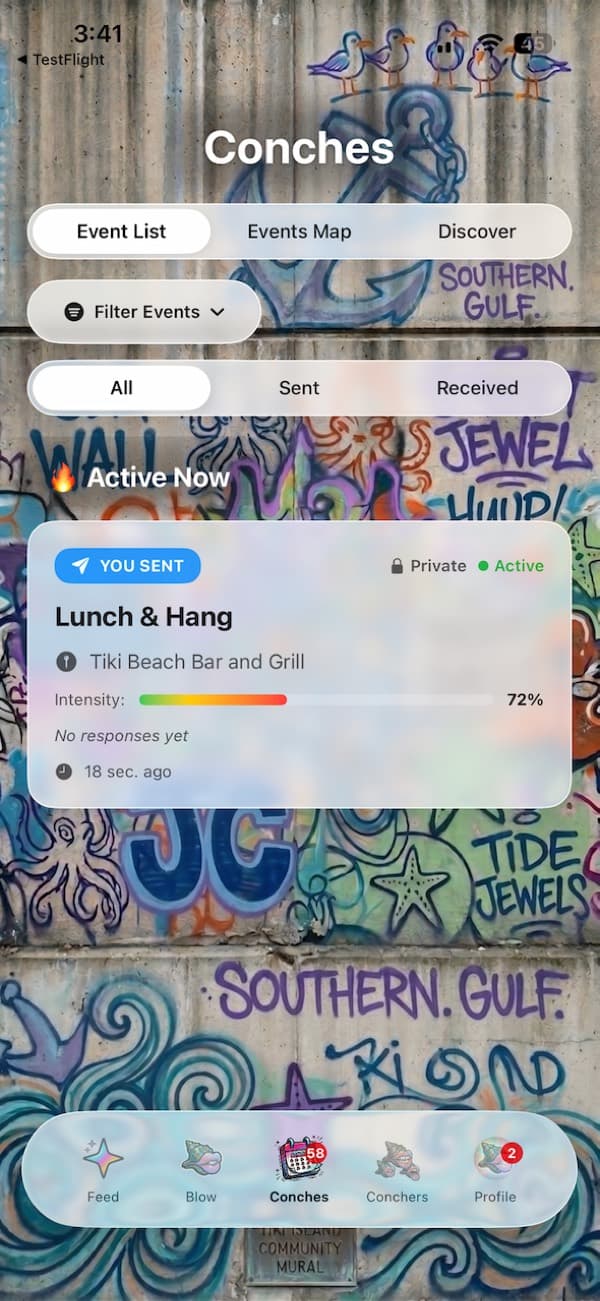
Feed (a TikTok-style scroll of your friends' event photos and videos), Blow (create a new event with the blow wizard), Conches (your event list, events map, and discover), Conchers (your friends, requests, and groups), and Profile (your stats, themes, and settings).
Conch runs on iPhone (iOS 17.0 and later). Android and a web version are planned for the future.
Blowing the Conch (Events)
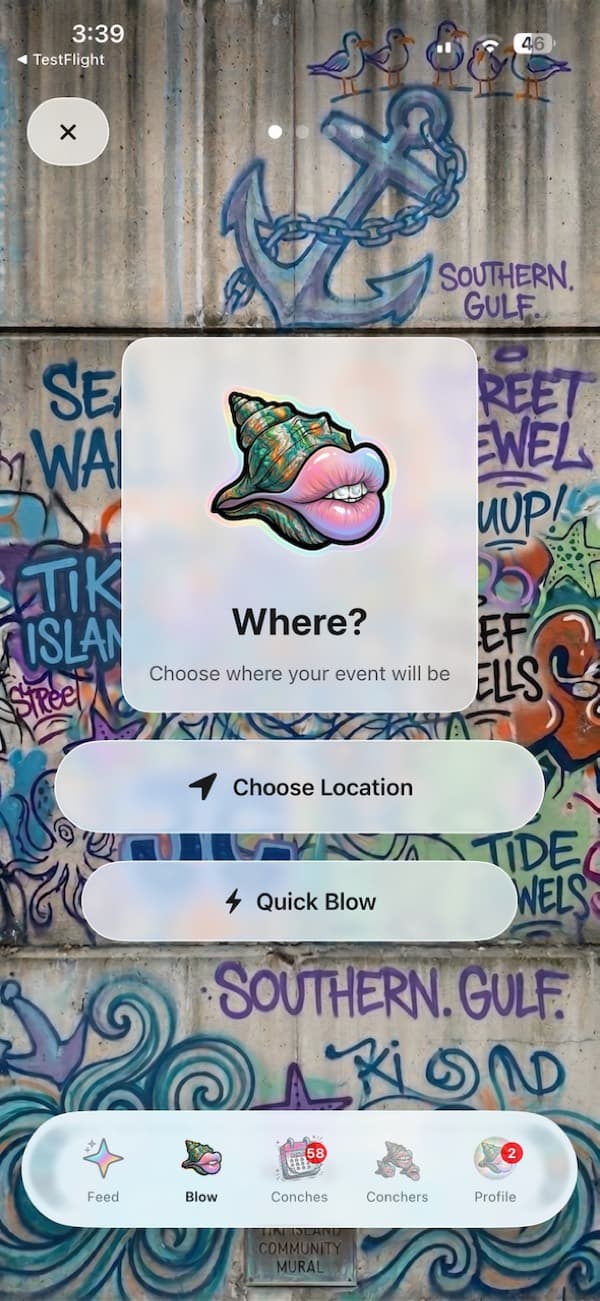
Tap the Blow tab and follow the wizard: choose where (location), when (now or scheduled), who to invite, and any details. You can also tap Quick Blow to reuse a saved setup. When you finish, your invited Conchers get a notification instantly.
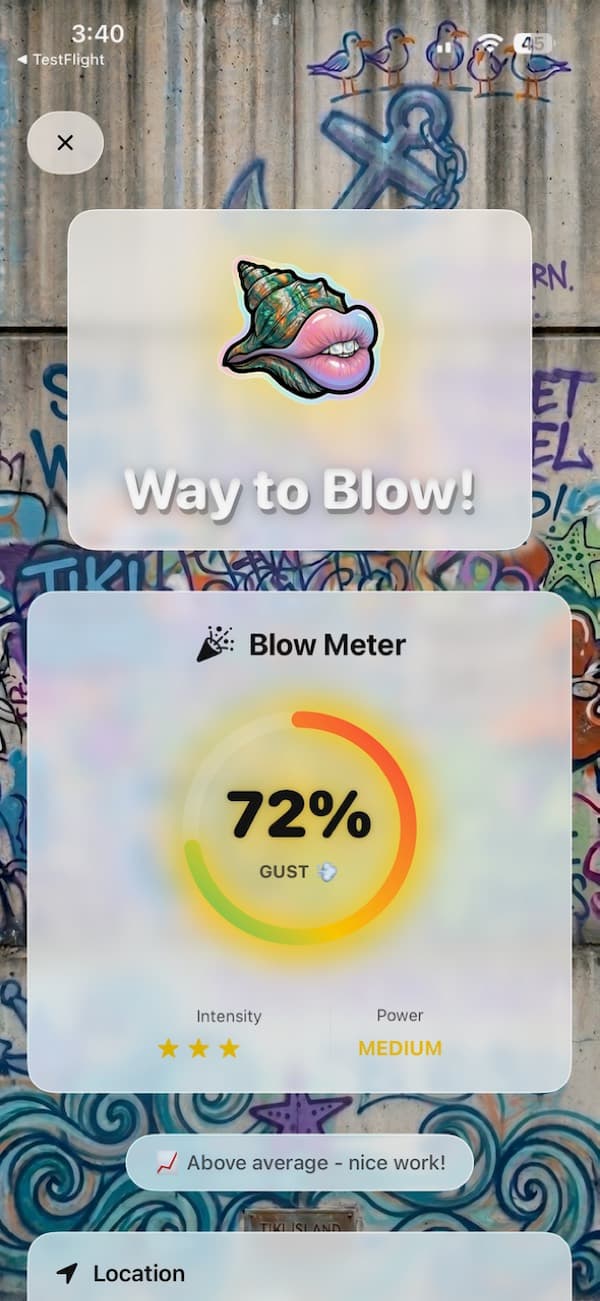
Conch uses your iPhone's microphone to detect a real blow into the phone. The Blow Meter shows your strength from 0–100% with a gust rating and a power level (e.g. Medium), shifting color from green to red. If you'd rather not blow, there's a hold-to-blow fallback in settings.
Yes. In the blow wizard, choose a future date and time instead of "now." You can also save frequent setups as Quick Blow presets for one-tap event creation.
Private events are only visible to the Conchers you invite. Public events appear on the event discovery map so nearby people can request to join. You choose the visibility when you create the event.
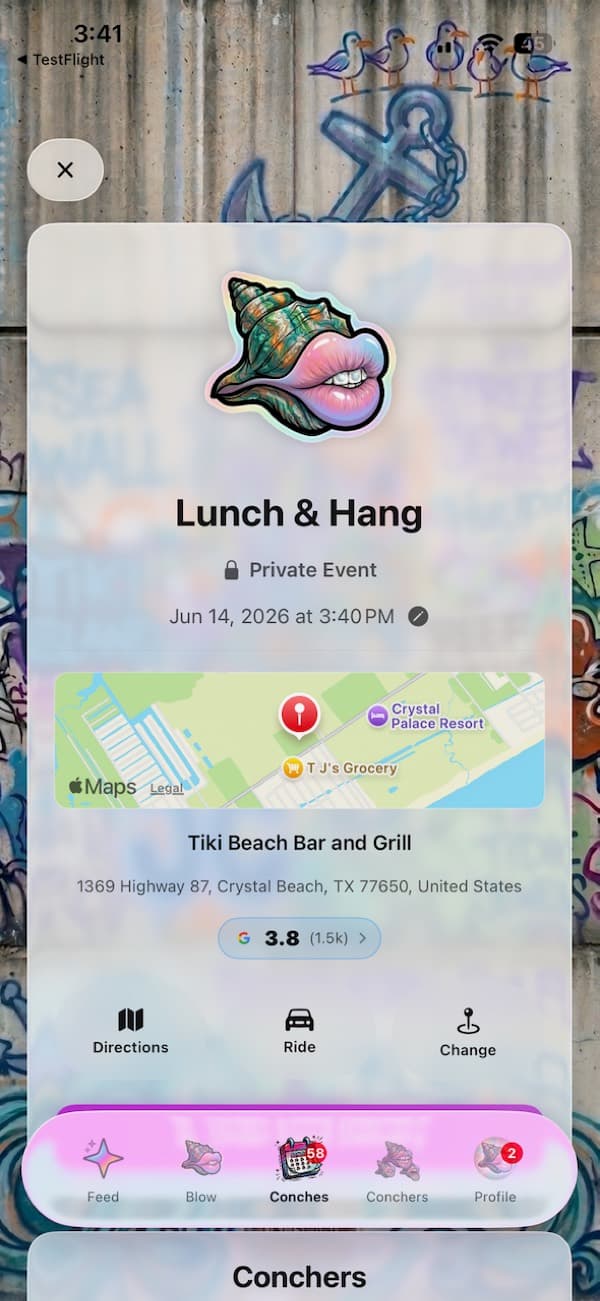
Open the Conches tab and find the event under "Received." Tap it to see the full details — location, time, map, and venue rating — then RSVP. From the event you can get directions, book a ride, order food, or message the group.
Conchers (Friends)
Open the Conchers tab. You can search for people by name or email, invite your phone contacts, or share your Conch QR code from your Profile. Once they accept, you can invite each other to events.
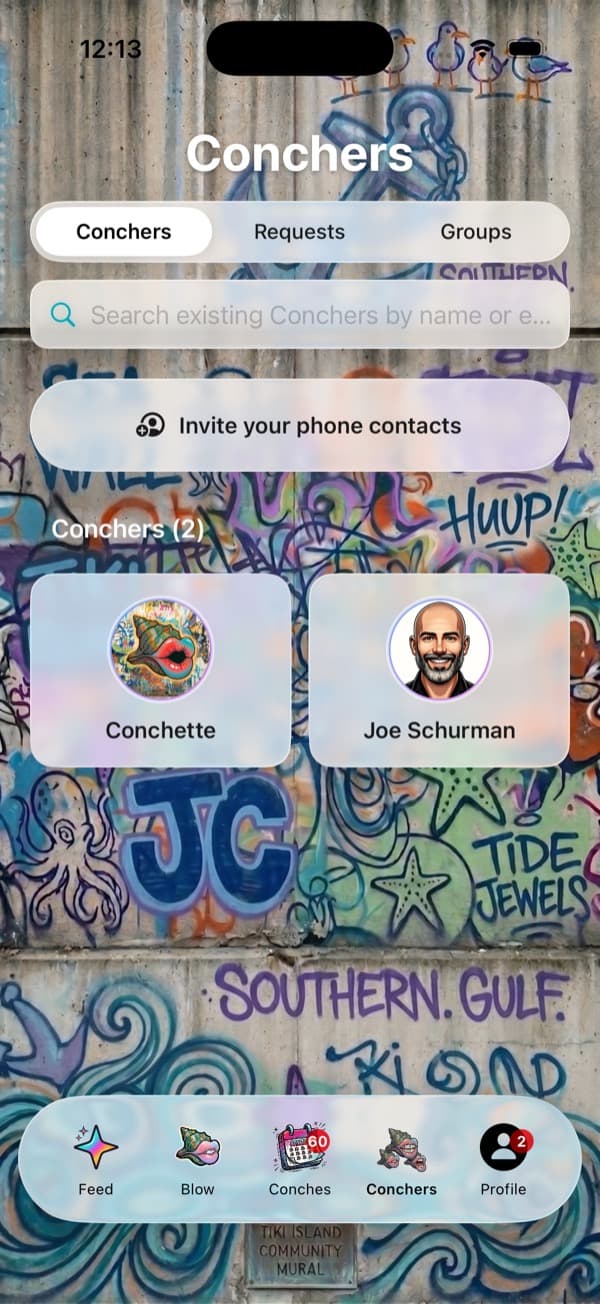
Groups let you save a set of friends so you can invite them all at once instead of picking them individually each time. Create and manage groups from the Groups section of the Conchers tab.
Go to the Conchers tab and open the Requests section. Tap to accept or decline each incoming request.
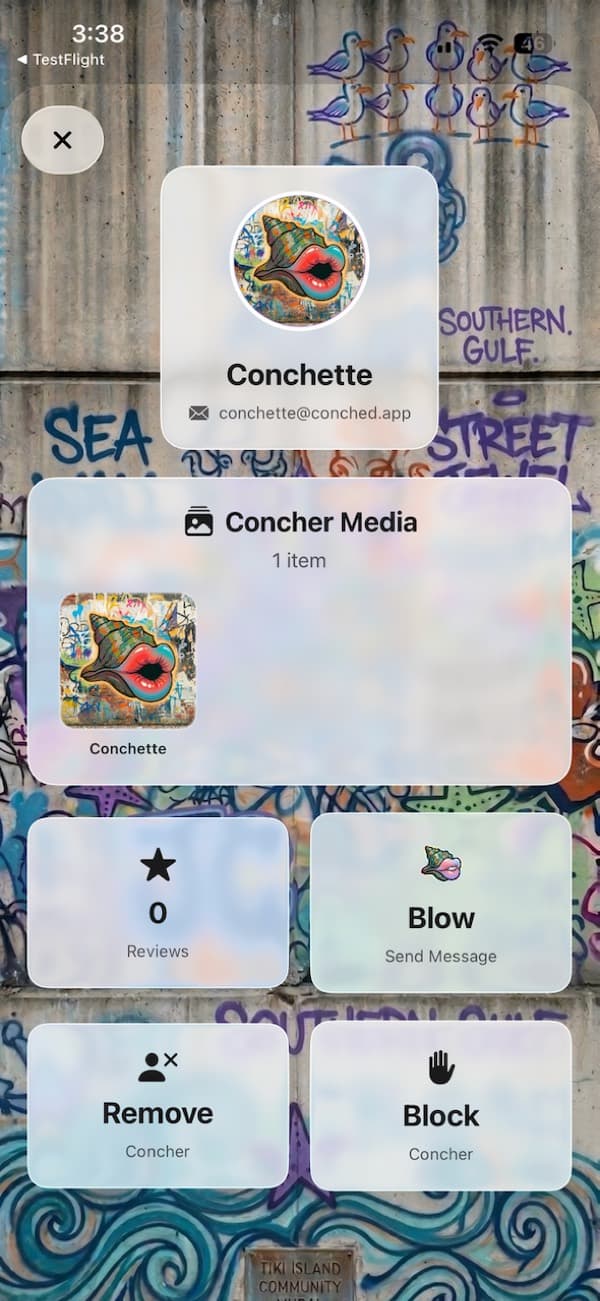
Yes. Open their Concher profile and choose Block. You can also Remove them as a Concher from the same screen. Blocked users can't invite you to events or see your activity.
Feed & Memories
The Feed is a full-screen, vertically scrolling stream of photos, videos, and memory reels from your friends' events. React with likes and loves, comment, and share. Filter between For You, Following, and Nearby.
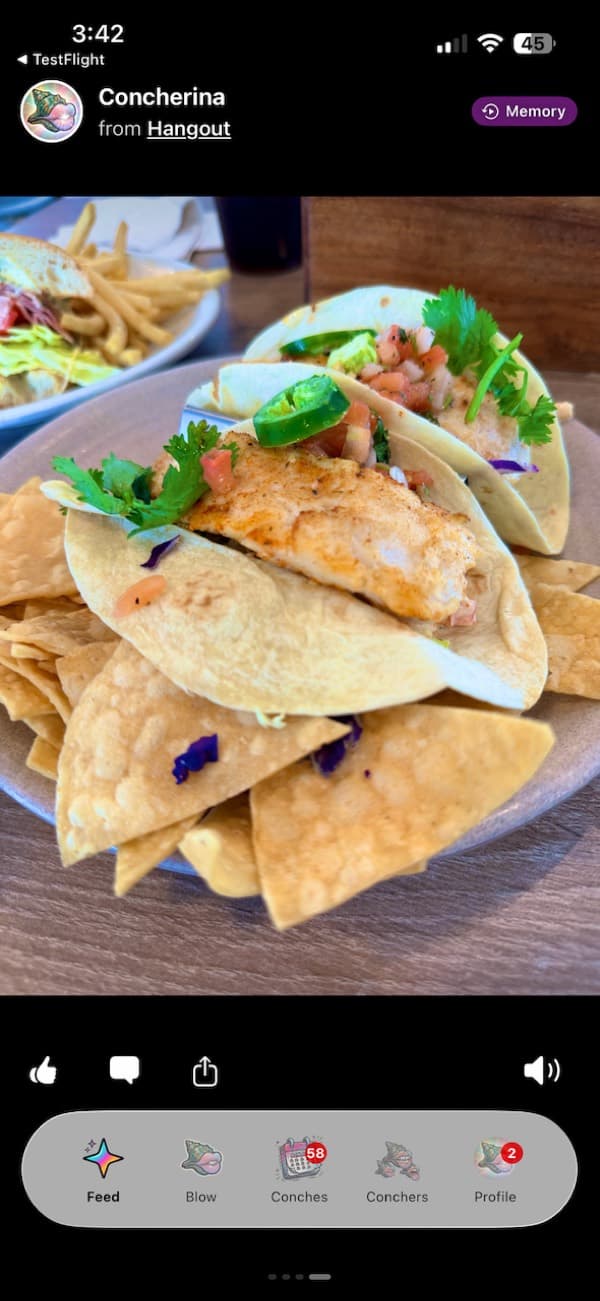
After an event ends, the host can build a memory reel by selecting photos and videos, adding transitions and filters, choosing background music, and publishing it to the feed for everyone who attended.
The Feed fills up as your friends post from their events. If you're new or your friends haven't posted yet, it may look empty. Add more Conchers and check back, or switch the filter to Nearby to see public posts.
Rides & Food
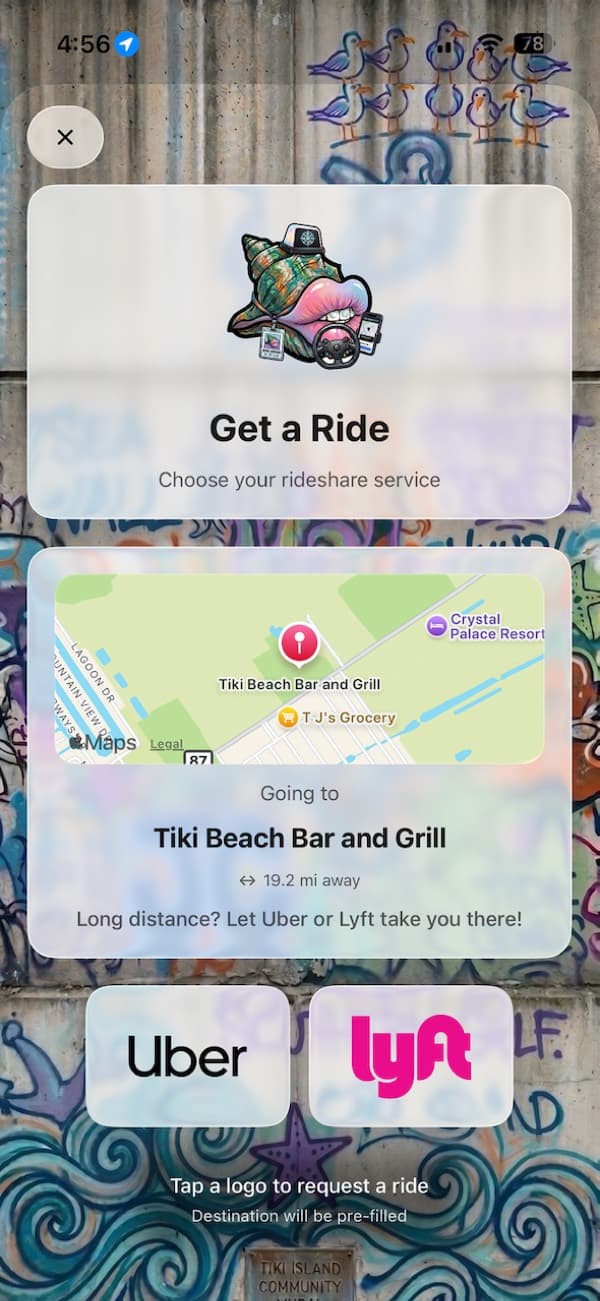
Yes. Open an event and tap Ride to choose a rideshare service. Conch shows the distance and hands you off to Uber or Lyft with the event location already filled in as your destination, so you just confirm and go.
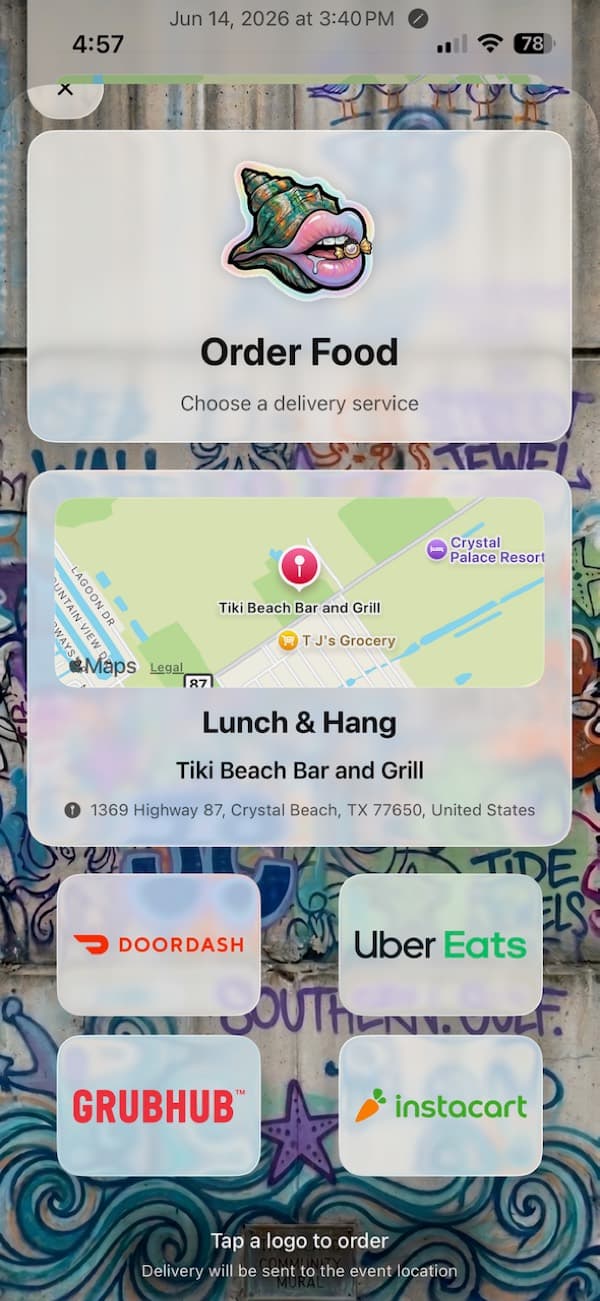
Yes. From an event, choose Order Food to pick a delivery service — DoorDash, Uber Eats, Grubhub, or Instacart. The event location is set as the delivery address so your order goes straight to where everyone's gathering.
No. Conch simply links you to those apps with the event details pre-filled — you pay the rideshare or delivery service directly through their app, the same as you normally would. Conch doesn't add any fees.
Themes
A theme is a complete visual and audio makeover: a custom conch shell design, a unique notification sound, a themed background, gradient, and matching colors throughout the app. Browse them in the Theme Store.
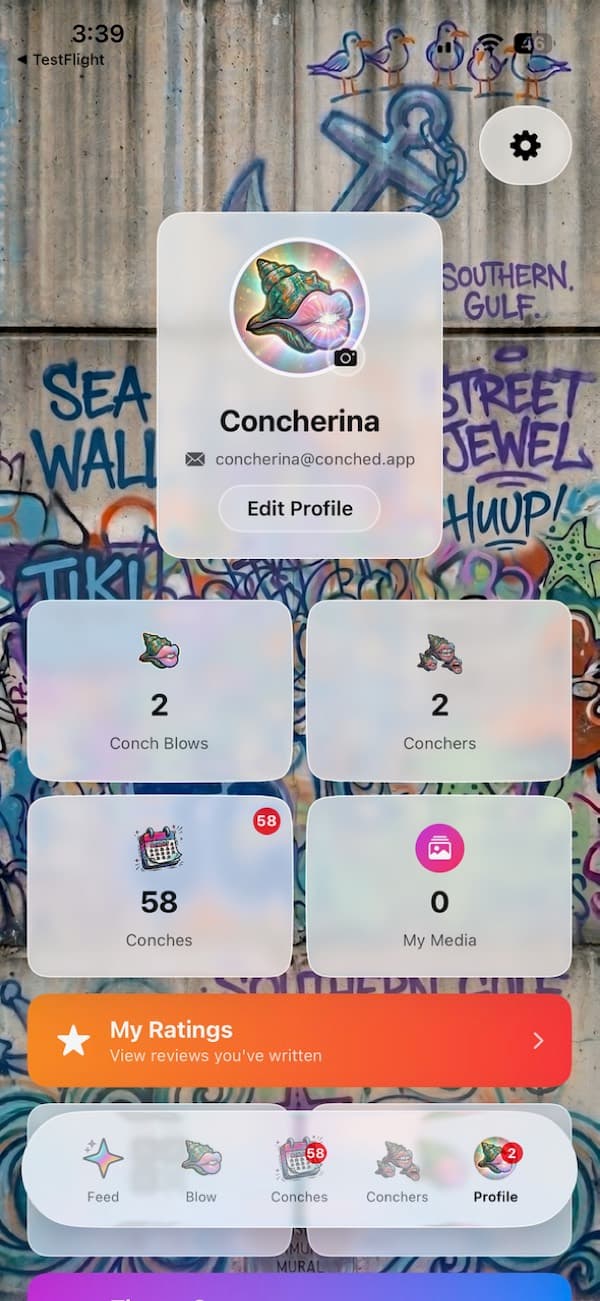
Open the Profile tab, tap the settings gear, and choose Theme Store. Browse available themes and tap to apply one. Your choice syncs instantly and is cached for fast loading.
Yes. New themes are delivered over the air and appear in the Theme Store automatically — no app update required.
Notifications
Conch sends notifications for event invites, messages, join requests, check-ins, friend requests, and more. Each one is deep-linked, so tapping it takes you straight to the relevant screen.
First, make sure notifications are enabled for Conch in the iOS Settings app (Settings → Conch → Notifications). Inside Conch, check your notification preferences under Profile → settings. If they're on in both places and still not arriving, try fully closing and reopening the app, and confirm you have a network connection. If it persists, submit a ticket and include your iPhone model and iOS version.
Yes — each notification type can be toggled individually in the app's settings, so you only get the alerts you care about.
Account & Privacy
Open the Profile tab and tap Edit Profile to update your name, photo, and details.
Open the Profile tab, tap the settings gear, and choose Sign Out.
Conch collects event data (location, time, attendees), profile info (name, email), and basic usage analytics to run the service. We never sell your personal data. See the Privacy Policy at conched.co/privacy for full details.
You can request account deletion from within the app's settings, or submit a ticket here and we'll process it. Deleting your account permanently removes your profile, events, and posts.
Troubleshooting
Start with the basics: force-close Conch and reopen it, make sure you're on the latest version from the App Store, and confirm you have a working internet connection. If the problem continues, restart your iPhone. Still stuck? Submit a ticket with a screenshot and we'll dig in.
Conch needs microphone permission to detect a blow. Check Settings → Conch → Microphone and make sure it's enabled. You can also switch to the hold-to-blow fallback in the app's settings if you prefer not to use the mic.
Make sure location access is granted in Settings → Conch → Location (While Using the App is enough). On the event map you can adjust the discovery radius from 1 to 50 miles.
Use the AI Assistant on this site to describe the issue (you can upload a screenshot), or submit a ticket directly. Including your iPhone model, iOS version, and a screenshot helps us resolve it faster.
Still need help?
Ask our AI assistant for an instant answer, or submit a ticket and we'll get back to you.